Tips on Adobe Photoshop usage
Note: I'll be adding more tips onto this post as I think of them.
General
1. For most tools (i.e. brush, pencil, marquee tool, move tool, etc) holding down shift or control or alt or even a combination of those can lead to a shortcut to a different tool/function of a tool for convenience.
2. Always check to make sure you're on the correct layer before you work on the next part of your project. Layers are good for testing edits to a picture so that it's not so committing.
Drawing
1. When on brush/pencil, you can hold down shift to draw a continuous line from point (mouseclick) to point (mouseclick). (Note: This works for the eraser on newer versions of Photoshop)
2. When on brush/pencil, you can hold down shift while holding down your clicker (mouse left click) to draw a straight line horizontally/vertically/or even diagonally at 45 degree angles.
Layers
Layers are one of the best features of Photoshop. Imagine a piece of paper as a background, then, place several overhead transparency sheets on top of that paper with each transparency sheet as a "layer" you can edit/add onto. If you've seen traditional cell animation, the concept is similar. You have a background, place a transparency sheet over that to place the character before the background scene, and another one over that to place maybe a second character or foreground decoration. Learn to use Layers.
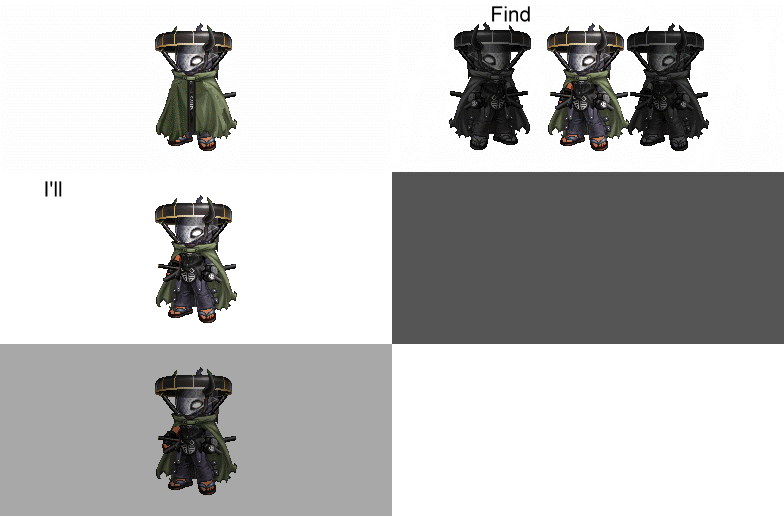
For avi animation, layers are handy in that you can cut up an avi's body to make animations happen more easily. For example, you can separate the head from the body by drawing a marquee (or the "marching ants" selection line) around the head with a lasso tool, then edit-->cut (or ctrl+X), and then "paste" (or ctrl+v) onto a new layer. Now onto how this all happens:
1. Adding a Layer:
Go to "Layer" --> New --> Layer (or just press Shift+Ctrl+N)
2. You can have a large no. of layers, but my advice is to keep no more than 20 at a time if you can. It'll get too confusing after that.
3. You can copy and paste onto new layers too if you'd prefer that (which makes avi animation a whole lot easier since you can copy/cut and paste either whole avis or just body parts onto new layers).
4. The pic of the eye on the left of the layers as displayed on the "layers window" shows that the layer is currently visible. If you click it, the eye will disappear, and the layer will be hidden. You can click that empty box again to make the eye (and the layer's visibility) come back up.
5. If you have 3 or more layers: let's say you want two layers to be "linked" (as in, when one moves, you want the other to follow) Highlight one layer in the layer tools window. Then, on the second layer that you want to link to the highlighted layer, there's an empty box by the eye box. Click that empty box and a chain link picture will appear. This means that those two layers are now linked. So if you move one, the other will follow. To un-link them, click that chain link picture again. (Note: you can link more than two layers together if you want.)
6. If you want to combine two or more layers and make them into one: link the layers you want to combine, highlight one of those layers, then, on the top right corner of the Layers window, there's a small triangle (which might say "more" beside it on newer versions of photoshop) that you can click. If you click it, you can select "Merge Linked" and that will combine your linked layers into one layer. (Note: If you highlight a non-linked layer when you press the triangle, the "Merge Linked" will say "Merge Down" instead which will let you merge that layer with one layer directly below it.
7. If you finished your work, and want to turn your work into a jpg file or bmp file, click the triangle button on the top right corner of the layers window, then select "Flatten Image." It might ask if you want to discard hidden images, say yes, then...
Go to File--> Save As (or Ctrl+Shift+S) and save it as a jpg or bmp or tif or png file. Your psd (photoshop) file, the project, will stay separate and won't be overwritten if you save it as another type of file (ex. jpg, tif, bmp, png) so that all your layers will still be around if you find something you want to change.