|
|
|
|
|
|
|
|
|
 Posted: Fri Apr 13, 2007 11:17 pm Posted: Fri Apr 13, 2007 11:17 pm
Where'd you get those eyes! O.o
So! I don't have any piccys v.v
But I'll try to get some really soon.
But here is a step by step for Photoshop users on how to make pretty shiny eyes!! O:
Of course, this is just the way I do it. You don't have to do it this way D:

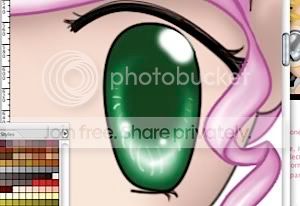
Here's a sample! See her pretty shiny eyes? eek
Okay, you can only see one eye, really - that monocle makes the other one dull and less shiny.
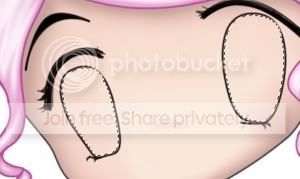
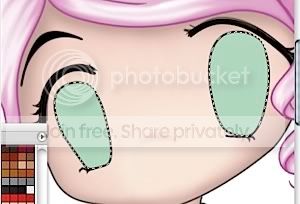
Well, to begin, i usually select the area in the lineart for the eyes. For me, it's the whole dark area. I don't draw in any iris or pupil or anything, just that oval-ish eye.
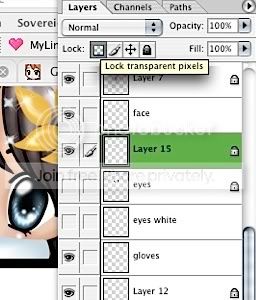
Now! expand the selection to cover the lineart a bit - 1 or 2 pixels, then create a new layer BELOW the lineart. If you use eyes with corners at all, you'll want to use your quick mask to make sure those corners are selected properly BEFORE you expand your selection. 3nodding

|
 |
|
|
|
|
|
|
|
|
|
|
|
|
|
Posted: Fri Apr 13, 2007 11:29 pm
|
|
|
|
|
|
|
|
|
|
|
|
|
Posted: Fri Apr 13, 2007 11:30 pm
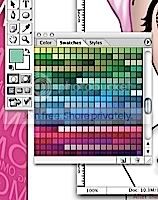
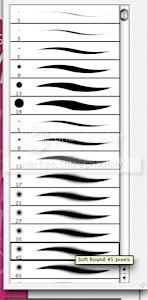 After than, choose a soft brush - you can use low transparency, but i just keep it at 100% - and start to color the darker portions, shade by shade, until you get to black. then draw the pupil in the middle, as well as a slight shadow beneath the eyelid. After than, choose a soft brush - you can use low transparency, but i just keep it at 100% - and start to color the darker portions, shade by shade, until you get to black. then draw the pupil in the middle, as well as a slight shadow beneath the eyelid.
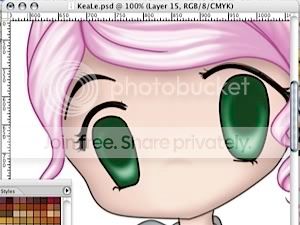
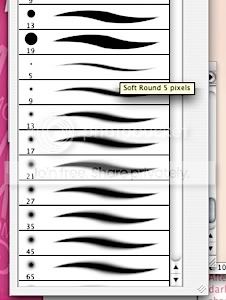
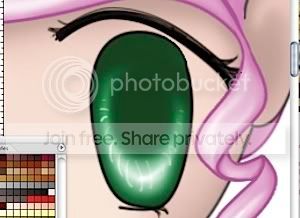
Finally, use the lightest or second lightest shade in your chosen palette to draw tiny lines in the iris using a soft brush (about 4 pixels) in the light colored area (take a look at my sample to see what i mean). Those lines will radiate from the center, so don't go making them all horizontal and whatnot! I'm watching you! D:< 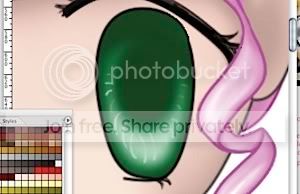
Now, to make that light area really shine, i use the
'dodge' tool, set to 'highlight' at about 20-25%
that may only make sense if you use photoshop sweatdrop
And use sweeping strokes, you don't want to linger or you'll get white spots. D:
Then add your white highlights to show the light source, and you've got beautiful eyes!! <33
|
|
|
|
|
|
|
|
|
|
|
|
|
|
|
Posted: Fri Apr 13, 2007 11:31 pm
okay! that's all 3nodding
I'll be posting the finished work in 'Completed Art' in a few days. :3
|
|
|
|
|
|
|
|
|
|
|
|
|
|
|
|
|
|
Posted: Fri May 25, 2007 10:19 am
|
|
|
|
|
|
|
|
|
|
|
|
|