I'm going to use some free lineart from Dark Turret Dragons, courtesy of Grey Dragon, for this, since it's small and simple. Lines are copyright Grey Dragon.
For reference, I started with
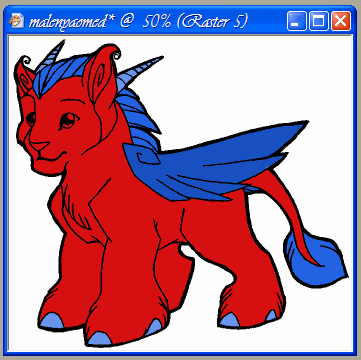
this. It's shown with the white background erased for coloring.
The next step is to
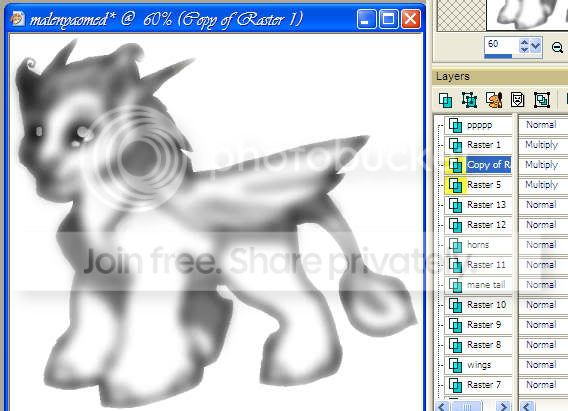
fill the area in the lines with a medium grey. I use the magic wand tool to select the lines so I don't have to erase later. The grey should be on a layer underneath the lines. Once it's filled, you can shade the grey as you would if it were colored. I like to use the lighten/darken tool. Congratulations, you now have a
shading template.
3nodding Now to use the template: It is easiest to decide what type of transparency to use when the pet is colored, so I'd recommend creating a new layer under the shading, hiding the shading layer, and at least filling the pet with a medium color. Once that's done, unhide the shading layer. You need to set the transparency on the layer - there are a lot of options, at least in PSP, so I'll briefly cover the most useful ones. I don't know how to do it in PS, but in PSP there is a drop down list in the layer menu where you can pick.
For reference,
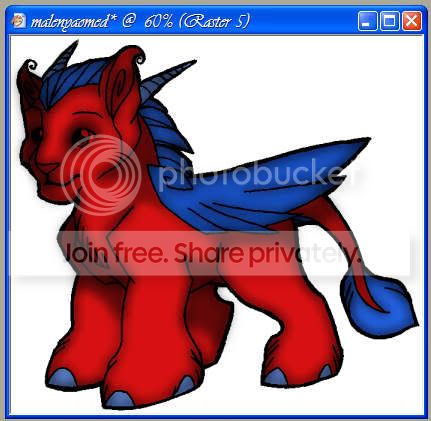
this is the unshaded coloring I did. I didn't do the erasing around the lines very well, as you'll see, but it was a quick job.
Opacity Change is actually not accessed through the transparency menu. Just adjust the opacity of the layer. I used the slider. This technique is fairly effective, although it tends to grey the colors.
Screen tends to look a bit grainy on large pieces, but it works just fine on small ones, although it lightens the color considerably.
Multiply is a good all-around setting. It darkens the color considerably, but it works great otherwise. Additionally, I /know/ that PS has this function.
Luminance is another good setting, although it looks odd with some brighter colors. It usually heightens contrast between light and shadow.
Finally,
overlay is my favorite. It looks great on anything and is true both to color and to depth of shading. It's basically the only one I use.
Troubleshooting and other stuff:
You must have the shading layer on top of all the color for it to work.
Transparency can also be applied to lineart to make colored lines.
Some coloring jobs might require different transparencies for the shading than others.
An interesting effect can be achieved by putting the shading on the bottom and the coloring on top, and making the color transparent instead of the shading.
Multiple layers under the shading layer will be shaded as though they are one layer.
And that's the end.
biggrin 


 Reply
Reply