|
|
|
|
|
|
|
|
|
 Posted: Tue Jul 14, 2009 5:53 am Posted: Tue Jul 14, 2009 5:53 am
 Good Morning/Evening/Night. Good Morning/Evening/Night.
Today you will learn how to edit your Avatar.
It's actually pretty simple with little to no difficult steps.
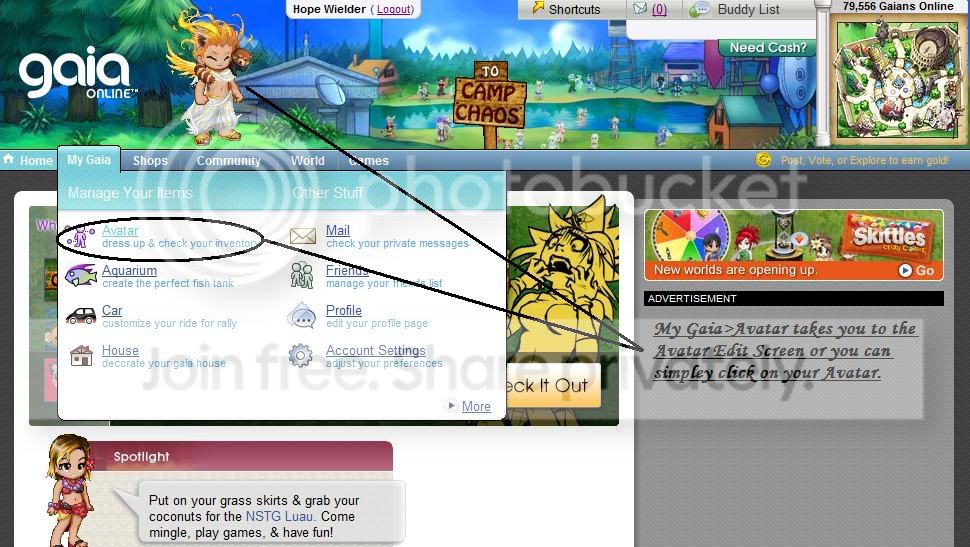
First, you have to go to the Avatar Edit Screen. To go there, do the following:
My Gaia>Avatar
or
you can also click on your Avatar at the top of the page.
In a few short second, you'll be in the Avatar Edit Screen.
That's it for step 1. I told you this Guide would be easy.
|
 |
|
|
|
|
|
|
|
|
|
|
|
|
|
Posted: Tue Jul 14, 2009 6:08 am
After you complete the last Step, you'll be taken to a page that looks like this: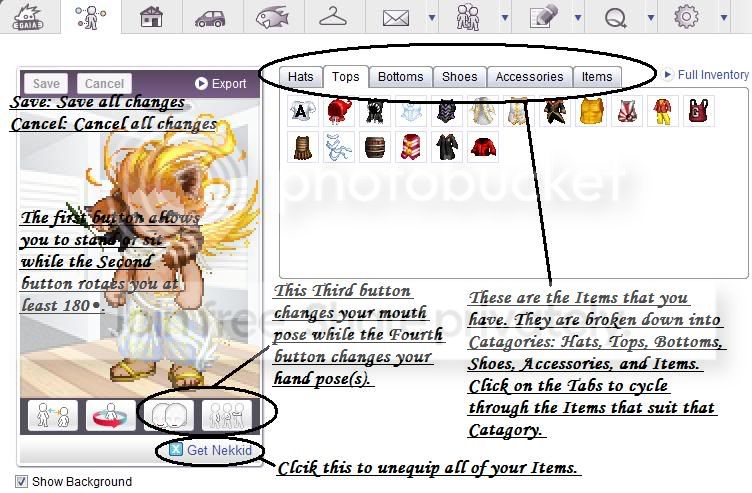 This is the Avatar Edit Screen. It's where you have the ability to edit your Avatar. This is the Avatar Edit Screen. It's where you have the ability to edit your Avatar.
We'll start with the Items. I mean, they are the most important after all, right? Items are the key to making great Avis.
To equip an Item onto your Avatar all you have to do is click it. What's that?
Can't find the Item that you're looking for?
Don't worry, your Items are divided into 6 Categories.
You have Hats, Tops, Bottoms, Shoes, Accessories, and Items.
Clicking on the Tabs take you to Items that fit the Category. Do you want a sword, click on Items. Pants? That's in Bottoms, child. Simple, right?
What's that? The "Get Nekkid" button concerns you? Don't worry. It won't place your Avi in that Nekkid situation that you all fear. It just take off all of your Items, but it leaves your Avatar with the stander shorts for Male and the stander panties and bra for Females. Do you see those icons below your Avatar? Those icons do different things. This is what they do:

This button changed the position of your Avatar. You can either sit or stand. Here's a little secret: When you have certain Items on your Avatar, sitting/standing may change the way the Item looks. Try it out once in a while.

Clicking on this button rotates your Avatar 180 Degrees...Well almost. You can either show your face or show your back. Here's a little secret: Rotating your Avatar can also change how some Items look like. Try it out once in a while.

The last two buttons change your mouth and hand pose(s). Sometimes adding the smallest of detail will make your Avatar amazing.
Once you finish your Avatar, click save to save all of the changes. And that's it.
Note: Some Items will change your Hand Pose when you equip them!
Let's move on to the final step...Oh, I forgot something.
The Cancel Button. After you make an Avatar and you want to change it yet again, you'll find that the Cancel Button will come in handy.
If for some reason you don't like the changes done to your Avatar, click on this button to undo all of your changes and make your Avatar "revert" back to the way it was when you came into the Edit Screen.
Alright, that's all. Now onto Step 3!
|
|
|
|
|
|
|
|
|
|
|
|
|
|
|
|
|
|
Posted: Tue Jul 14, 2009 6:22 am
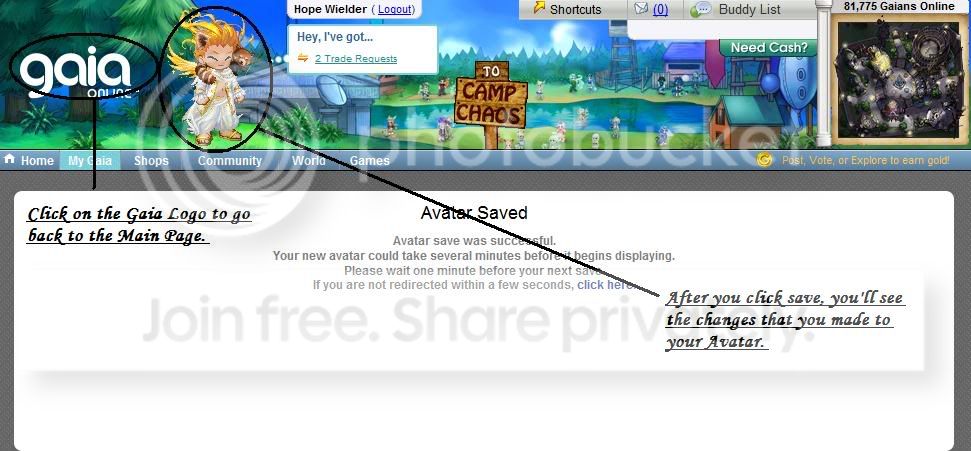 Once you hit Save, the page will then once again begin to load. Once it is done, you'll be taken to a Page that looks like the picture above. Once you hit Save, the page will then once again begin to load. Once it is done, you'll be taken to a Page that looks like the picture above.
The Page will then begin to load once again by itself and you'll be taken back to the Avatar Edit Screen.Click on the Gaia Logo to go back to the Main PageAnd that's it. The finale that shows you how to edit your Avatar. Now go out there and create some great Avatars, enjoy Gaia.
|
|
|
|
|
|
|
|
|
|
|
|
|
|
|
|
|
|