|
|
|
|
|
|
|
|
|
 Posted: Mon Jul 13, 2009 11:29 am Posted: Mon Jul 13, 2009 11:29 am
Welcome all to the second Guide in the HW Guide Series.
This time I'm going to show you how to edit your "About Me" Section for your Profile.
One feature that makes Gaia unique and amazing is its Profile System. All of Gaias Users have their very own Profile. And the "About Me" Section is usually seen in most of them. This section gives other User the chance to know you. Alright, let's get started. 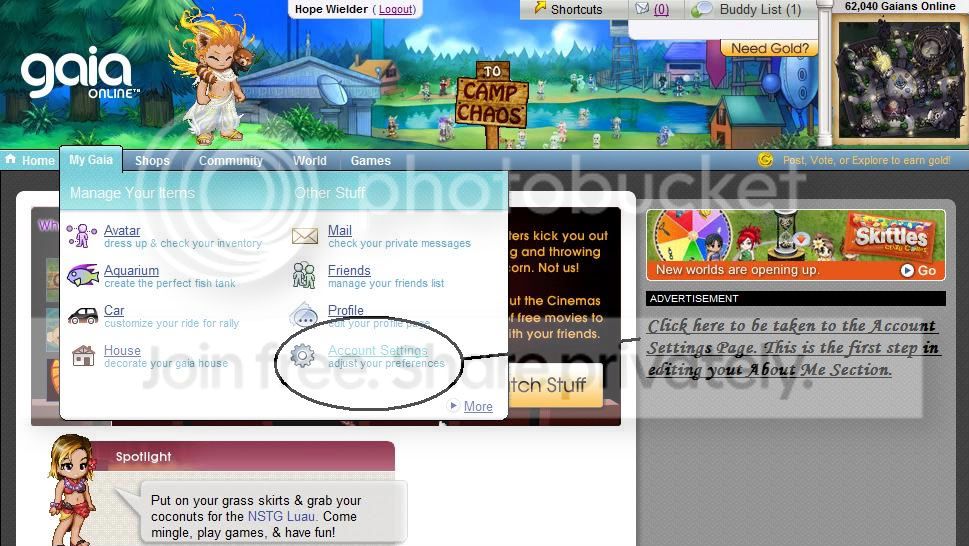 First you have to go to your Account Settings. To do so, you have to do this: First you have to go to your Account Settings. To do so, you have to do this:
My Gaia>Account Settings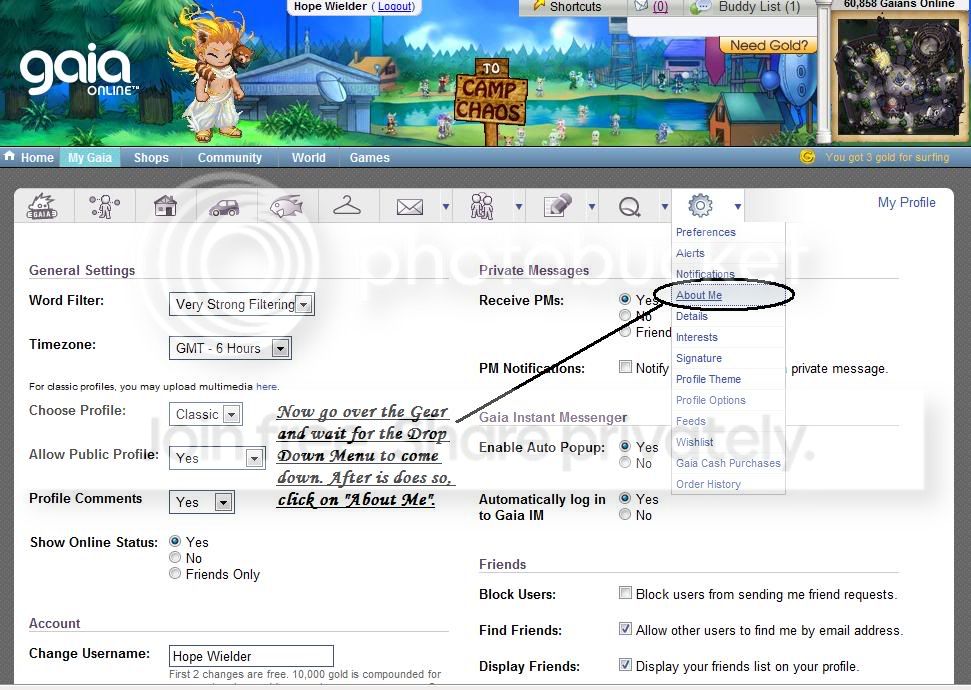
You must then go to the About Me Section.
Account Settings>About Me
That's it for step 1. Let's move on shall we?
|
 |
|
|
|
|
|
|
|
|
|
|
|
|
|
Posted: Mon Jul 13, 2009 11:36 am
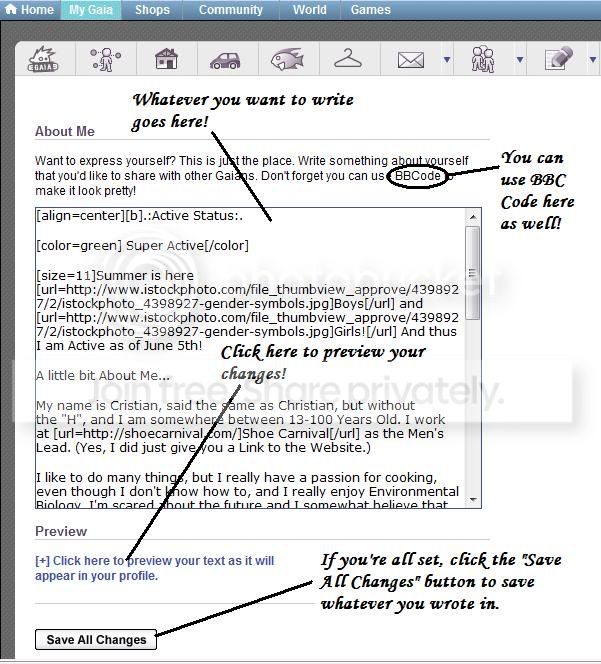 After a few seconds or a few minutes if your computer is slow, you should arrive at a Page that looks like the picture above. After a few seconds or a few minutes if your computer is slow, you should arrive at a Page that looks like the picture above.
Keep in mind that I crop most if not all of the pictures, but as long as you can see most of what's on the picture, you're fine.
Alright, you can start typing in that box. That's where you put in the information that you want on your Profile. You can put down your favorite color, favorite pizza topping, favorite sport, and much more.
Like any other Site, it's often suggested that you don't put down too much personal information. I myself only put down my age and name and where I work, but I don't put down my street address. Who knows who's out there. Oh, and keep it PG-13.
To make your Profile even more amazing, you can use BBC Code to add color to your words and you can even paste pictures.
Don't know how to do either? Don't worry, I'll have Guides up on how to do both later on.
I'll even update this Section with the Link to them.
Alright, go ahead and type in what you want. Have fun. Let people know what you like to do and who you are...Persona wise.
When you're done, click on the "Save all Changes" button. If you want to preview what you wrote, click on the sentence that says so.
And that's step 2 out of 3. Almost done.
|
|
|
|
|
|
|
|
|
|
|
|
|
|
|
|
|
|
Posted: Mon Jul 13, 2009 11:46 am
 I lied. That was the final step. smile That wasn't too hard, right? I lied. That was the final step. smile That wasn't too hard, right?
To see the changes that you've made to your Profile go to your Profile by doing the following:
My Gaia>Profile.
And there you go. You should now be on your Profile. You'll see that your "About Me" Section has been updated with the changes you've made.
That's it. Until next time, enjoy Gaia.
|
|
|
|
|
|
|
|
|
|
|
|
|
|
|
|
|
|