Welcome to Gaia! ::

The Organization of Evil Gaian Crashers

Back to Guilds

For those who crashed Gaia during Gaia Spirit Week `09 ... and anyone else who's cool enough. 

Tags: Spirit Week, Evil Organization, Crashers, Gaian 

Reply Crash 'n Chat/ Spam
[Tutorial] HOW TO TAKE A SCREENSHOT

Quick Reply

Enter both words below, separated by a space:

Can't read the text? Click here

Submit

retro shrimp
Vice Captain

Invisible Genius

6,450 Points
  • Forum Junior 100
  • Invisibility 100
  • Treasure Hunter 100
PostPosted: Sun Jul 12, 2009 5:18 pm


shrimpee says:
                        During GSW we were having people who did not know how to take screenies at all and missed some great moments because of this, or didn't get to take screenies when they made their own meetings.

                        WELL, FRET NO MORE. HERE IS SHRIMPY'S TUTORIAL ON TAKING SCREENSHOTS.

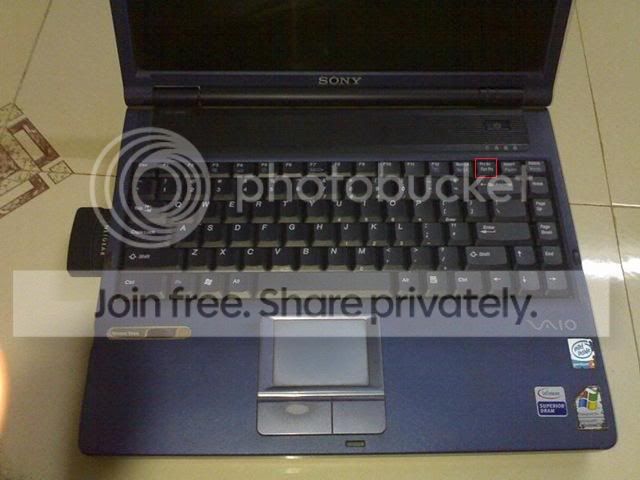
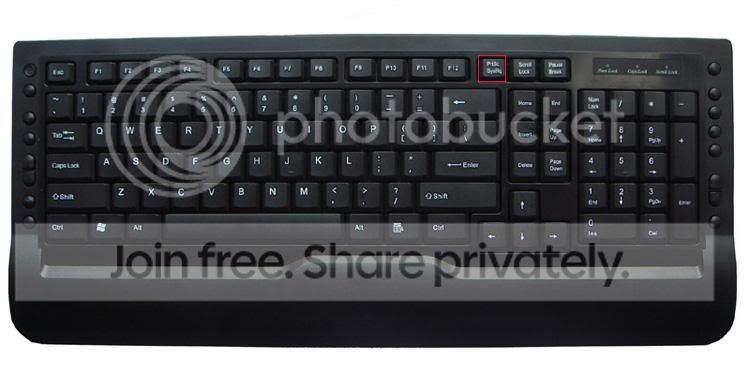
                        Look at your keyboard. The key that you're looking for is 'Prnt Scrn' or 'Print Screen'. It is usually placed with the SysRq key on standard PC keyboards, in the upper right corner right before the number pad. Some computers/keyboards do not have a print screen button, however, and if you're unable to find it then please send me a picture of your keyboard and I will try to find it. If there is no print screen button I have no idea how to take screenies. D: If anyone has any idea how to take screenies in any other way but this, feel free to post them.

                        Here is where it is on most laptop keyboards.
                        User Image

                        Here is where it is on most PC keyboards. Some keyboards also have it right over the number pad.
                        User Image

                        OKAY. You have located your print screen button, have you? Now you can take a screencapture! What happens to it, however? It's just like a 'copy' tool: the information is still there, but you have to 'paste' it into a program. I generally use paint because it comes with my computer, but if you have any other programs then use them.

                        REMEMBER: ONLY PRESS PRINT SCREEN ONCE OR ELSE YOUR PREVIOUS PICTURE WILL DISAPPEAR. If you know you're going to be taking multiple screenies in a row, have multiple program windows and save them as you go.

                        Once you have the picture you can edit it as you like!

                        Any questions post here. If you can't find your print screen button, post a picture here and we'll help you find it. If anyone knows how to take pictures of a computer screen (similar to print screen button) post those here and I will add them to the first post.
PostPosted: Sun Jul 12, 2009 5:41 pm


User Image
There is also the problem of some computers having the PrtSc button assigned to different tasks. I have encountered one that actually did what it sounds like it would do...it accessed the assigned printer, and printed the screen out. Also, on my main computer, the print screen button does nothing. Zip. Zero. Zilch. Nada.

It's very unfortunate, but I don't know how to reassign the key to that task. sad

Karasunaki
Crew

3,950 Points
  • Forum Sophomore 300
  • Hygienic 200
  • Signature Look 250

o-Bittersweet Symphony-o
Crew

PostPosted: Sun Jul 12, 2009 5:43 pm


Well, nice tutorial for the PC's.
Now.

Who has a MAC out there? i know I do!

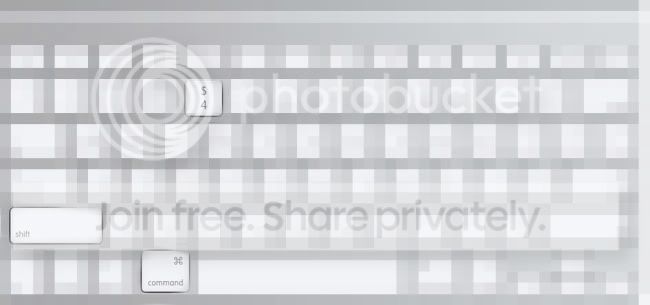
How to take MAC screenies!


Press

COMMAND+SHIFT+4
After that, there will be a little cross as your mouse. With that, you click and drag over the area you'd like to take a screenie of.
The picture will automatically be saved to your Desktop.

Just incase if you are maybe new to Mac (even thought all buttons are quite seen...) Here:

User Image


~For a FULL PAGE Screenie~

You press

COMMAND+SHIFT+3
(It will also be saved to your Desktop)

:3

hope this helped! ^^
PostPosted: Sun Jul 12, 2009 6:21 pm


i took a screenie on my computer but it comes out full screen how do u make it small screen?

Trouvelot

Dapper Werewolf

6,600 Points
  • Treasure Hunter 100
  • Millionaire 200
  • Money Never Sleeps 200

retro shrimp
Vice Captain

Invisible Genius

6,450 Points
  • Forum Junior 100
  • Invisibility 100
  • Treasure Hunter 100
PostPosted: Sun Jul 12, 2009 6:27 pm


Sonic Demonic
i took a screenie on my computer but it comes out full screen how do u make it small screen?
shrimpee says:

                        You have to cut it and paste it into a new Paint document. Cut out the part you want and leave the rest.
PostPosted: Sun Jul 12, 2009 8:13 pm


Akatsuki--g i r l--Yukii
Well, nice tutorial for the PC's.
Now.

Who has a MAC out there? i know I do!

How to take MAC screenies!


For this, i don't need to show you my keyoard. It's quite simple.

Press

COMMAND+SHIFT+4
after that, there will be a little cross as your mouse. With that, u click and drag over the area you'd like to take a screenie of.

~For a FULL PAGE Screenie~

You press

COMMAND+s**t+3

:3

hope this helped! ^^


User Image

Command s**t? eek


Karasunaki
Crew

3,950 Points
  • Forum Sophomore 300
  • Hygienic 200
  • Signature Look 250

o-Bittersweet Symphony-o
Crew

PostPosted: Sun Jul 12, 2009 8:21 pm


Karasunaki
Akatsuki--g i r l--Yukii
Well, nice tutorial for the PC's.
Now.

Who has a MAC out there? i know I do!

How to take MAC screenies!


For this, i don't need to show you my keyoard. It's quite simple.

Press

COMMAND+SHIFT+4
after that, there will be a little cross as your mouse. With that, u click and drag over the area you'd like to take a screenie of.

~For a FULL PAGE Screenie~

You press

COMMAND+s**t+3

:3

hope this helped! ^^


User Image

Command s**t? eek


Well... do u have mac? Cuz im sure all MAC users should know what the "Command" button is. O.o

EDIT: HOLY CRAP! I totally just noticed. thanks for pointing that out... haha... command s**t... xD
PostPosted: Wed Jul 15, 2009 11:26 pm


Thank youU!!!

Ephesius

Noob


Kiptic

550 Points
  • Happy Birthday! 100
  • Member 100
  • Gaian 50
PostPosted: Thu Jul 16, 2009 4:46 pm


Guess I'd better post here too XD

You should take screenies as PNG, not JPEG (for tip on how see below pics!). Don't use JPEG it messes up the graphics (JPEG is really only meant for photos, as in camera).

Compare these two, it's the same but one in JPEG and the other in PNG:

JPEG:
User Image - Blocked by "Display Image" Settings. Click to show.

PNG:
User Image - Blocked by "Display Image" Settings. Click to show.

Big difference in quality! The JPEG algorithms are for photos not for graphics, it gets confused by high contrast stuff like text.

(btw. ignore the red and blue edges on the text in the PNG, that's my comp doing weirdness XD)

WINDOWS SCREENIE TIP:

A really really great tool (for Windows, sorry I don't think it exists on Mac) that simplifies screenshots a lot is Cropper. It's much better than PrtScr + paint and stuff, I use it all the time! If you download it, please follow the instructions on that website for proper installation smile

Easiest is to just start it, then right-click and "hide" it so it goes into the task bar. Then, if you've set it up properly, just press PrtScr for screenshot or even better, Alt-PrtScr for capturing just the active window, and wham it automagically saves the pic on your desktop! If you set it to PNG in the setup it will even be in the proper format XD

Yay, ready to go biggrin

And you can take several shots in a row too, they'll just end up as several pics on your desktop (or wherever you decided they should go, but I find the desktop is easiest).
PostPosted: Sat Jul 18, 2009 8:44 am


What if you don't have any paint stuff? D=

My coputer sucks since my parents got the bare minimal. It didn't even have Word on it when I got it, so i couldn't do most of my typing assignments at home until I found a free download version online. D;

animekittyninja-aka kiki

Taken Cleric

18,950 Points
  • Friend of the Goat 100
  • Noble Shade 100
  • Married 100

Kiptic

550 Points
  • Happy Birthday! 100
  • Member 100
  • Gaian 50
PostPosted: Sat Jul 18, 2009 11:18 am


animekittyninja-aka kiki
What if you don't have any paint stuff? D=

My coputer sucks since my parents got the bare minimal. It didn't even have Word on it when I got it, so i couldn't do most of my typing assignments at home until I found a free download version online. D;


All Windows version come with the really basic MS Paint. But, I recommend you get Cropper, see my previous post about it. It's a lot easier to use.
PostPosted: Tue Jul 21, 2009 3:49 am


Cropper worked for me for like two minutes and then it started bugging on me.
So I just stopped using it.
I'll just PRNT SCRN, copy and just save it as a PNG.
.___.
So much less complicated.

retro shrimp
Vice Captain

Invisible Genius

6,450 Points
  • Forum Junior 100
  • Invisibility 100
  • Treasure Hunter 100

Kiptic

550 Points
  • Happy Birthday! 100
  • Member 100
  • Gaian 50
PostPosted: Wed Jul 22, 2009 7:16 pm


retro shrimp
Cropper worked for me for like two minutes and then it started bugging on me.
So I just stopped using it.
I'll just PRNT SCRN, copy and just save it as a PNG.
.___.
So much less complicated.


bugging? what did it do? it works like a charm for me smile

well as long as you save as PNG it's fine i guess xd
PostPosted: Thu Jul 23, 2009 6:32 pm


Well, first it worked fine.
But then I'd press Alt+Prnt Scrn and it would take a picture of the area around the area that I wanted to take a picture of, including the annoying blue square that's around the spot I'm trying to picture.

retro shrimp
Vice Captain

Invisible Genius

6,450 Points
  • Forum Junior 100
  • Invisibility 100
  • Treasure Hunter 100
Reply
Crash 'n Chat/ Spam

 
Manage Your Items
Other Stuff
Get GCash
Offers
Get Items
More Items
Where Everyone Hangs Out
Other Community Areas
Virtual Spaces
Fun Stuff
Gaia's Games
Mini-Games
Play with GCash
Play with Platinum
//
//

// //

Have an account? Login Now!

//
//