Welcome to Gaia! ::


User Image

Feb. 22, 2010
Hello everyone, long time no talk. Well, in regards to this tutorial. I won't lie, I got sick of users bitching because it wasn't some magical one step thing, I stopped caring, I basically left this thread (and, you know, it got unsubscribed and I forgot about it). However, I realize that was a horrible, selfish, rude thing of me to do. Therefore, I will be doing a complete overhaul of this tutorial. I will fix the broken links, make it Windows/Mac/whatever else need be friendly, and provide information on a few various ways to do this. Gaia has changed since this tutorial was first made, it's been almost four years, and believe me, I haven't updated much since then! Can you believe that? I can't. There are tonnes of ways to get music and media in your profile now, it' not nearly as black and white as it used to be. I plan on showing it soon.

I apologize once again to everyone, and hope to see you sometime in the near future.

- Demonic Life.


--------------------------------------------------------------------------------------


Demonic Life
Once again I post this

Attention people using the player tutorial. The source forge site is having some issues, until I figure out what the eff they are doing, your player may or may not work properly. I'm sorry, but it is the site that is having the problems, there is nothing I can do.

edit: They disabled hotlinking due to bandwidth


Warning: I'm sorry to all your dial-up users, I tried to make this with little graphics but I did need them, so this thread is kinda graphic heavy.

KapKyle originally made this but since he "retired" from Gaia, I have decided to re make it because a lot of people were having some problems with it. Okay so this is how you add music to your profile. Original tutorial by Kap Kyle. Then I had made a tutorial, but with the new profile systems coming out, I had to fix a couple things, and my thread was too small, so I remade it. My old tutorial


Index:
1. Welcome
2. Updates
3. Tutorial 1 [windows only] Old school
4. Tutorial 2: Old School
5. Tutorial 1 [windows only] New Profile
6. Tutorial 2: New Profile
7. F.A.Q
8. Links of Interest
9. Reserved
10. Reserved
11. Reserved
12. Reserved
13. Reserved
14. Reserved
15. Reserved


[1]Welcome || [2] Updates || [3] Tutorial 1 O.S. || [4] Tutorial 2 O.S. || [5] Tutorial 1 N.P. || [6] Tutorial 2 N.P. || [7] FAQ || [8] Links || [9-15] Reserved

Updates


May 31st 2007
Updated the tutorial slightly. Added direct download links from the SUPER site. Switched the hosts so that the two best hosts were at the top of the links. Crossed out the version two tutorials and made the 'tutorial no longer works' bolder and added an arrow beside it, because people apparently were missing the huge and bolded text at the top of the post.

December 3rd 2006
Updated the SuperFever tutorials to work with the newest version of the program, since many users have enformed me there is a newer version out. I already knew that, but now you have it set up to use the newer version, it has more steps, but you asked for it smile

October 27th 2006
I haven't updated this in a while. Some CSS codes have been added for the new profile style as now you can have CSS. Myfilehut went down today, as it does sometimes. Must watch it, for it's one of the most popular hosts used for this tutorial.

July 15th 2006
I updated the FAQ with some new CSS codes for the multimedia that I forgot to add the first time. Also the old tutorial has been locked so yes this is my way of forcing you to post here xD

July 14th 2006
I remade this tutorial from the old tutorial I didn't reserve enough posts stupid me, I didn't think I would need them. With the new profile system though changes were made and I had to rewrite this. I gave it a over haul with looks, I didn't want too many graphics due to dial up users, but it won't be so cluttered now, and I'm trying to make it more user friendly.


[1]Welcome || [2] Updates || [3] Tutorial 1 O.S. || [4] Tutorial 2 O.S. || [5] Tutorial 1 N.P. || [6] Tutorial 2 N.P. || [7] FAQ || [8] Links || [9-15] Reserved
User Image

Please note this tutorial will only work for Windows users as the program is made for that and I've yet to find a free converter that is downloadable for Mac or Linux.

To see a demo of how Super Fever works click here It doesn't show a .mp3 being converted into .swf, but you get the idea.

Step 1
Download Super Fever

Click Here to download Super Fever

UNDER CONSTRUCTION

Super Fever will allow you to turn your music file into .swf or a flash. It is free and contains no spywear or viruses.

Step 2

Install Super Fever, I believe you can do this yourself.

Step 3 making your .swf file

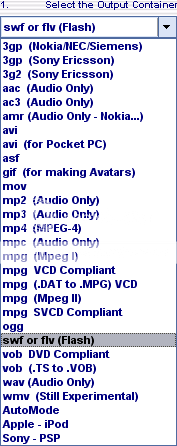
Okay first thing you have to tell Super Fever what kind of file you want to change your file to, there should be a drag down menu thing that above it says "Select The Output Container" go here and choose swf (flash)

User Image


Step 4
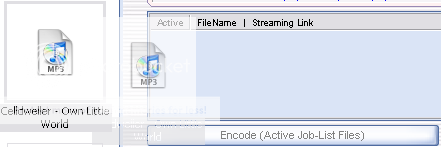
You need to upload the file so what you want to do is go to where ever you have your file and drag the file into the big white box near the bottom

User Image

Step 5
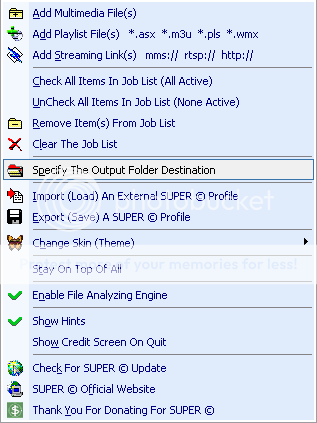
To choose what folder you .swf will go after being encoded right click the song in the box and choose specify the output folder destination

User Image

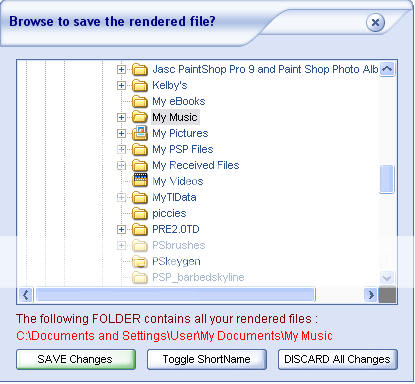
then choose the folder and click SAVE changes

User Image

Step 6

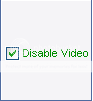
Since we are converting music into flash, make sure the disable video is checked

User Image

Step 7

Click encode now

User Image

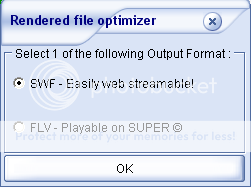
If a window pops up asking what you want to convert your file to, choose SWF- Easily web streamable! then click ok.

User Image

Your file will start to encode

User Image

Step 8

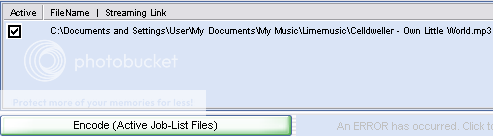
If your file didn't encode the An ERROR has occurred option will light up. Click it to see what the problem is.

User Image

If all has encoded well, close SuperFever


Step 9 Hosting

Now you need to host your new .swf file there are a couple host I use.

ripway.com
myfilehut.com
fsphost.com
filelodge.com*
streamload.com*
Simpload.com*

* = may not work

Step 10

Add the code [link] the host gives you to your multimedia ^^


[1]Welcome || [2] Updates || [3] Tutorial 1 O.S. || [4] Tutorial 2 O.S. || [5] Tutorial 1 N.P. || [6] Tutorial 2 N.P. || [7] FAQ || [8] Links || [9-15] Reserved
User Image

arrow This tutorial no longer works

Okay now...this billiant idea was thought up by my lovely friend Chekwa..now..Chekwa is a mac user..and the above way of adding music did not work..so she came up with this idea after baseing her profile from mine and making a music based profile. So I asked her in I could have her premission to add this to my tutorial..and she said yes. This method does not need you to download any program and works with any version of computer!!

Hosts
fsphost.com
ripway.com
myfilehut.com
filelodge.com*
streamload.com*
Simpload.com*

* = may not work


Step 1

Upload your mp3 file ((not swf) wink to one of the above hosts

step 2

take this url code thingar


and where it says "yoursongurl" put in the url the host gave you!


Step 3

add the code to your multimedia and there you go, what you add to your multimeda should look something like:


IMPORTANT: when you use this method without hiding your multimedia a little button will be there..it starts and stops the music. It should look like :

User Image - Blocked by "Display Image" Settings. Click to show.

just so you know =D


[1]Welcome || [2] Updates || [3] Tutorial 1 O.S. || [4] Tutorial 2 O.S. || [5] Tutorial 1 N.P. || [6] Tutorial 2 N.P. || [7] FAQ || [8] Links || [9-15] Reserved
User Image

Please note this tutorial will only work for Windows users as the program is made for that and I've yet to find a free converter that is downloadable for Mac or Linux.

To see a demo of how Super Fever works click here It doesn't show a .mp3 being converted into .swf, but you get the idea.

Step 1
Download Super Fever

Click Here to download Super Fever
Click Here to download Super Fever [host 2]
Click Here to download Super Fever [host 3]
Click Here to download Super Fever [host 4]

Super Fever will allow you to turn your music file into .swf or a flash. It is free and contains no spywear or viruses.

Step 2

Install Super Fever, I believe you can do this yourself.

Step 3 making your .swf file

Okay first thing you have to tell Super Fever what kind of file you want to change your file to, there should be a drag down menu thing that above it says "Select The Output Container" go here and choose swf (flash)

User Image


Step 4
You need to upload the file so what you want to do is go to where ever you have your file and drag the file into the big white box near the bottom

User Image

Step 5
To choose what folder your .swf will go after being encoded right click the song in the box and choose specify the output folder destination

User Image

then choose the folder and click SAVE changes

User Image

Step 6

Since we are converting music into flash, make sure the disable video is checked

User Image

Step 7

Click encode now

User Image
If a window pops up asking what you want to convert your file to, choose SWF- Easily web streamable! then click ok.

User Image

Your file will start to encode

User Image

Step 8

If your file didn't encode the An ERROR has occurred option will light up. Click it to see what the problem is.

User Image

If all has encoded well, close SuperFever


Step 9 Hosting

Now you need to host your new .swf file there are a couple host I use.

ripway.com
myfilehut.com
fsphost.com
filelodge.com*
streamload.com*
Simpload.com*

* = may not work

Step 10

Now go to your main profile page (or go to My Gaia -> Profile -> View Profile) and go up to the top of the page where it says Edit My Profile. (If you don't have the new profile set up go to MyGaia -> Profile -> Account [or click here] and choose New Profile where it says "Choose Profile".

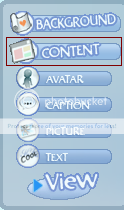
Now if you don't already have a multimedia box, now called the media this is what you have to do go to the option menu thing and click content

User Image


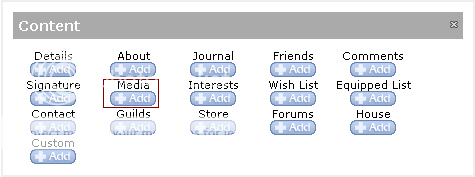
Now a box will pop up with a bunch of things you can add, go to media and click +add

User Image

You will then have a media box, go to the corner or the media box and click edit. Another window will pop up, where it says Media: This lets you enter a URL to a media file to display. is where you put your URL for your music. Put your url in, and click the update button and there you go.


[1]Welcome || [2] Updates || [3] Tutorial 1 O.S. || [4] Tutorial 2 O.S. || [5] Tutorial 1 N.P. || [6] Tutorial 2 N.P. || [7] FAQ || [8] Links || [9-15] Reserved
User Image

arrow This tutorial no longer works

Okay now...this billiant idea was thought up by my lovely friend Chekwa..now..Chekwa is a mac user..and the above way of adding music did not work..so she came up with this idea after baseing her profile from mine and making a music based profile. So I asked her in I could have her premission to add this to my tutorial..and she said yes. This method does not need you to download any program and works with any version of computer!!

Hosts
fsphost.com
ripway.com
myfilehut.com
filelodge.com*
streamload.com*
Simpload.com*

* = may not work


Step 1

Upload your mp3 file ((not swf) wink to one of the above hosts

step 2

take this url code thingar


and where it says "yoursongurl" put in the url the host gave you!


Step 3

the code should look something like:


Now go to your main profile page (or go to My Gaia -> Profile -> View Profile) and go up to the top of the page where it says Edit My Profile. (If you don't have the new profile set up go to MyGaia -> Profile -> Account [or click here] and choose New Profile where it says "Choose Profile".

Now if you don't already have a multimedia box, now called the media this is what you have to do go to the option menu thing and click content

User Image


Now a box will pop up with a bunch of things you can add, go to media and click +add

User Image

You will then have a media box, go to the corner or the media box and click edit. Another window will pop up, where it says Media: This lets you enter a URL to a media file to display. is where you put your URL for your music. Put your url in, and click the update button and there you go.


IMPORTANT: when you use this method without hiding your multimedia a little button will be there..it starts and stops the music. It should look like :

User Image - Blocked by "Display Image" Settings. Click to show.

just so you know =D


[1]Welcome || [2] Updates || [3] Tutorial 1 O.S. || [4] Tutorial 2 O.S. || [5] Tutorial 1 N.P. || [6] Tutorial 2 N.P. || [7] FAQ || [8] Links || [9-15] Reserved
User Image

Will you make me one of these

Nope you can do it yourself now

What's the difference between "Old School" and "New Profile"

Old School is using the old system where you put code, aka CSS into your theme box and you build your profile that way. New Profile is the new profile system that uses no CSS [Note: Now you can use CSS for the new school system.]

I can't download Super Fever because it's a zipped file and I run Mac, what can I do?
Check the forth post [Old School] or the sixth post [New Profile] for the computer user friendly way of getting music in your profile ^^

How do I hide my multimedia section like in your profile?

My profile is done using old school CSS so for the old school, go to "my Page" go to theme and add either of these codes.


#multimedia { visibility: hidden; height: 0px; }


New Profile

.media_panel { visibility: hidden; height: 0px; }


How do I resize my multimedia? [CSS]

#multimedia object, #multimedia embed
{ width: NUMBERpx;
height: NUMBERpx; }


and fill in the numbers, it goes by pixels height is for height width is for width..and put it in your theme box.

How do I move my multimedia around? [CSS]


#multimedia object, #multimedia embed
{ Position: absolute;
Top: NUMBERpx;
Left: NUMBERpx; }


For "Top" it's how many pixels you want it to be down the page (Pixels from the top). Left it's from the left (Like, say, 50 pixels from the left). Numbers can be negative.
You can also use relative positioning.

I don't want my Multimedia to show up at all? [CSS]


#multimedia object, #multimedia embed
{ display: none; }


Note: This makes your Multimedia go away completely, so no music can play.

When I play my song it goes twice as fast!

Yes, when you play it on super fever after it's a .swf, you put it in your multimedia it plays right again

After I drop the file in the bar thingy I press the "Encode Now" button and the file is deleted from the bar and it says "DROP A VALID MULTIMEDIA FILE HERE" I've done this with other files... But I dunno what's wrong with these ones..

It always says that after encoding. Nothing is wrong with your file it worked, go to where your original music file was and your .swf will be there.

I'm using tutorial 1 Old School for my profile, and I want the song to repeat, how can I do this?

I've been asked this SO many times, at this current moment unless you know flash or are using a player, you can't I'm sorry. I've been playing with coding to see if I can find anything that'll work, but I've found nothing yet.

and then on the myfilehut.com page thing, I click:
User Image - Blocked by "Display Image" Settings. Click to show.

Actually as soon as you upload it it goes to this place it gives you the code just with User Image - Blocked by "Display Image" Settings. Click to show.For when you change it to swf (Flash) is it going to say that instead of mp3

In the file name it will still say <songname>mp3 but it will be a flash.


Are you awesome

No


Can I pm you?

Not unless I say so


I need help with youtube!

Wrong tutorial go here

I need CSS help, can you help me?

Unless it's regarding the multimedia I doubt it, I could help you but it's not my place since this tutorial is not about that. Go to my links posts and check out some nifty CSS threads.


[1]Welcome || [2] Updates || [3] Tutorial 1 O.S. || [4] Tutorial 2 O.S. || [5] Tutorial 1 N.P. || [6] Tutorial 2 N.P. || [7] FAQ || [8] Links || [9-15] Reserved
Links

Flash FAQ - Test the limits of your Multimedia
This is [Q]'s Flash tutorial. It's really handy if you want to do more with your multimedia, it shows you the basic of flash as well as how to make a flash profile. It also has more flash players for your multimedia/media.

Youtube + Playlist + Photobucket multimedia tutorial
o0NeMo0o's tutorial for all you people who need help with youtube =]

Gaia Online Profile Guide
Tutsumi's very useful guide for profiles.


User Image

Kahime's CSS tutorial, I used this tutorial for all my CSS needs, it gives you basic CSS plus advanced and the people there are ready to answer your questions

.: Making Custom Profiles :. Everything You Need To Know
Kira Catgirl's very handy CSS/Profile thread.

Beyond the Coding [Designing Your Profile] [Personal Help]
Another very good CSS thread I've used.

User Image - Blocked by "Display Image" Settings. Click to show.
coerul's guide to the new peofile system.

The new profile system >>>The simple stuff<<<
Some basic information on the new profile systems.


[1]Welcome || [2] Updates || [3] Tutorial 1 O.S. || [4] Tutorial 2 O.S. || [5] Tutorial 1 N.P. || [6] Tutorial 2 N.P. || [7] FAQ || [8] Links || [9-15] Reserved


[1]Welcome || [2] Updates || [3] Tutorial 1 O.S. || [4] Tutorial 2 O.S. || [5] Tutorial 1 N.P. || [6] Tutorial 2 N.P. || [7] FAQ || [8] Links || [9-15] Reserved


[1]Welcome || [2] Updates || [3] Tutorial 1 O.S. || [4] Tutorial 2 O.S. || [5] Tutorial 1 N.P. || [6] Tutorial 2 N.P. || [7] FAQ || [8] Links || [9-15] Reserved


[1]Welcome || [2] Updates || [3] Tutorial 1 O.S. || [4] Tutorial 2 O.S. || [5] Tutorial 1 N.P. || [6] Tutorial 2 N.P. || [7] FAQ || [8] Links || [9-15] Reserved


[1]Welcome || [2] Updates || [3] Tutorial 1 O.S. || [4] Tutorial 2 O.S. || [5] Tutorial 1 N.P. || [6] Tutorial 2 N.P. || [7] FAQ || [8] Links || [9-15] Reserved


[1]Welcome || [2] Updates || [3] Tutorial 1 O.S. || [4] Tutorial 2 O.S. || [5] Tutorial 1 N.P. || [6] Tutorial 2 N.P. || [7] FAQ || [8] Links || [9-15] Reserved



[1]Welcome || [2] Updates || [3] Tutorial 1 O.S. || [4] Tutorial 2 O.S. || [5] Tutorial 1 N.P. || [6] Tutorial 2 N.P. || [7] FAQ || [8] Links || [9-15] Reserved



[1]Welcome || [2] Updates || [3] Tutorial 1 O.S. || [4] Tutorial 2 O.S. || [5] Tutorial 1 N.P. || [6] Tutorial 2 N.P. || [7] FAQ || [8] Links || [9-15] Reserved

Quick Reply

Submit
Manage Your Items
Other Stuff
Get GCash
Offers
Get Items
More Items
Where Everyone Hangs Out
Other Community Areas
Virtual Spaces
Fun Stuff
Gaia's Games
Mini-Games
Play with GCash
Play with Platinum
//
//

Join Now

// //

Have an account? Login Now!

//
//