Welcome to Gaia! ::

Which MAC OS do you have

Classic OS 9 or earlier 0.1 10.0% [ 8 ]
10.1 0 0.0% [ 0 ]
10.2 0.0375 3.8% [ 3 ]
10.3 0.0375 3.8% [ 3 ]
10.4 0.325 32.5% [ 26 ]
I don't have a mac (for what ever reason) 0.5 50.0% [ 40 ]
Total Votes:[ 80 ]
1 2 3 4 >

I started a similar thread in another forum website. The idea behind it being there were a lot of mac basers at my school and I wanted a place were I could post all the neat stuff you can do to make mac OS that much more plesent to use/More efficiant.
Basicly heres how you do it. If you have discovered somthing really cool post up a little turorial (prefrebly with nice little screenys heart ) on how it works. In this way people thinking about swithching can know some of the really awsome stuff they can get into.

This thread is also open to the showing simple tips to switchers such as small differences between mac os and windows that they should take note of.
This thread isn't just for switchers either I learn cool new stuff about my prefered OS all the time and this is the perfect oppertunity to learn more and maybe spread some stuff that other people might not know

So let the tutorialing Begin

There is just 1 rule I guess
- No mac bashing this is NOT the right thread for that Please help keep my thread clean of garbage


Updates

Back to the legacy name AND NO COMPLAINING!

I have decided to extend the turorials to allow more than just MAC OS
Final Cut Pro for example.

Ok I'll post the first very simple Tutorial which will cover somthing I see a lot of in mac newbies. It will also show an ideal example of what Im looking for here.

Closing apps [It's a little differnt]

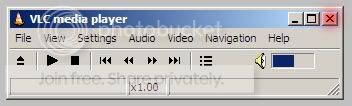
Basicly in windows if you wanted to close an app You would either click on the cross on the right side off the app window.

User Image


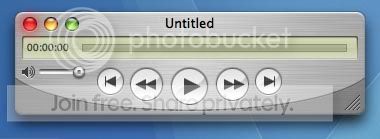
How ever Unlike windows The whole app isn't contained in a single window But if your coming from a windows Background you might not see this and click on the Red button as so but This only closes your window not the app.

User Image

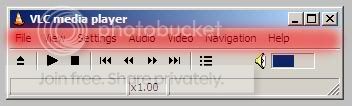
Think of your programs as being maximised at all times this bar up at the top of the screen.

User Image


Is basicly the equivlent of this.

User Image


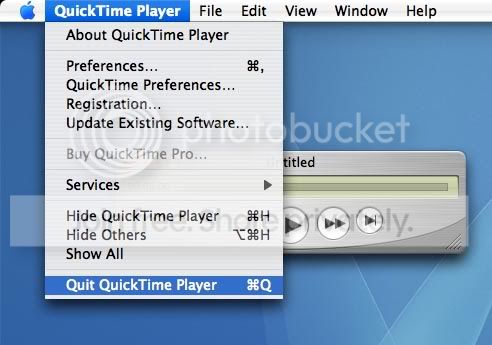
When the OS is focused on your app in particular the name will show up there and you work with the corosponsing sub windows with in it It's like a maximsed app in windows except differnt.
So anyways If you want to Close your app what you do is this.

User Image


The shortcut is apple+q or Command+q if you prefer You can also Right click on its dock icon and say quit app.
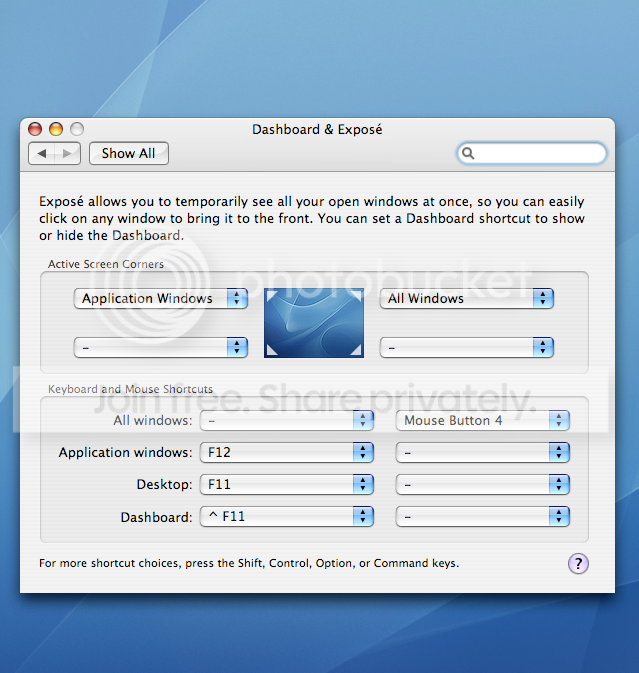
I've Been a big fan of screen corners for a while now It's not everyones Cup o' tea.
But I find it to be a very fast and efficient way to activate expose' I only use the top 2 corners as I find it easier to flick the cursor up than down.

User Image
I swear by OnyX. My G3 lagged like crazy (on a fresh OS X install no less), and OnyX helped a ton.

Quotable Prophet

14,750 Points
  • Money Never Sleeps 200
  • Entrepreneur 150
  • Wall Street 200
Shoroo_Lupin
I swear by OnyX. My G3 lagged like crazy (on a fresh OS X install no less), and OnyX helped a ton.


I'll second this recomendation. OnyX is easy to learn and effective in dealing with the under the hood stuff like overblown OS databases and caches, CRON scripts and other fun stuff. Get it and learn how to use it. Oh, and it's free.

Oh, and http://versiontracker.com is a handy website to have bookmarked in your web browser.
Hmmm... can I say something about taking screen caps...:


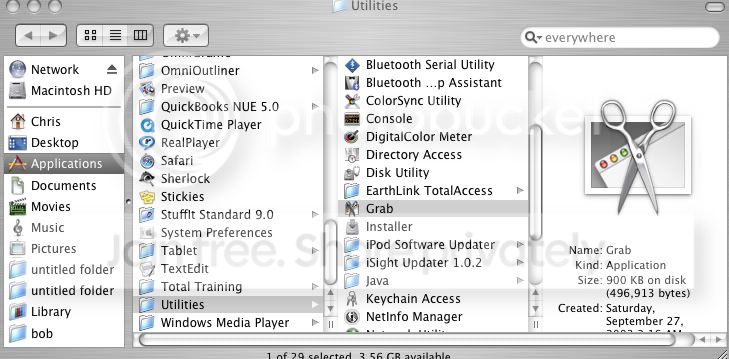
Taking screen caps in a mac is different. There usually isn't a button for it. So we you Grab.

Location:
User Image

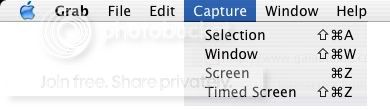
There are four options:
User Image
Selection Allows you to select a area for the screen capture.
Window captures a whole window
Screen captures the whole screen
Timed Screen waits a while and then captures the whole screen..


I hope you don't mind me saying that.
www.versiontracker.com - If you need to find freeware for your Mac, find it there.

FTP Client: Transmit
VNC Client: Chicken of the VNC
DVD Backup: Handbrake
Multi Messenger: Adium
Extra iChat feature: ChaX
Find/Correct iTunes Song info: iEatBrainz
Find iTunes Album Art: FetchTunes
Manage multiple iWebs: iWebSites

openoffice.org
Aioo
Hmmm... can I say something about taking screen caps...:


Taking screen caps in a mac is different. There usually isn't a button for it. So we you Grab.
I hope you don't mind me saying that.


Actually, if you read River Felix's (the OP) post, you can see that you can take a screenshot by pressing Command + Shift + 3, as well as a few other commands for more specific screen captures. You can change the key combinations in your Keyboard and Mouse preferences. I'm not exactly sure what Grab can do that this easier method can't.
Indeed there are those shortcuts that make screenshots a lot faster how ever since I posted in another thread Here's the complete set.

Shift + Apple + 3 = Complete Screen Shot
Shift + Apple + 4 = Selection Sceen Shot

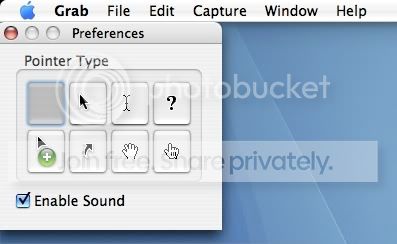
Grab would seem Fairly useless on first glance but I've discovered it to have some slight advantages

1 Being the timed screen and second Being the ability to have a pointer in your screen shot.


User Image


User Image


How ever the downside to grab is that you clearly have Grab in your Dock and well yeah....
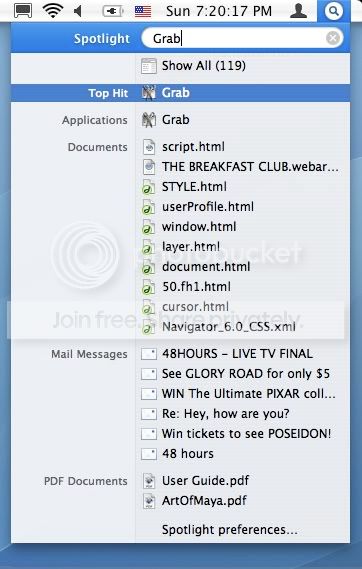
This here is a little feature Of mac OS 10.4 that I would find a bit annoying to live with out now that I'm so used to it. It's just a little tip for Spotlight.
In my animation course I constantly see my tutor saying stuff like
"This app might not be in your dock so you should say go/applications/rah rah rah"
When really if you know the name of your app say somthing slightly more hidden away and less obvious like Grab for example or your just plain lazy and or don't use it enough to clutter your Dock?

User Image
Though Grab may be slow it does have it's advantages
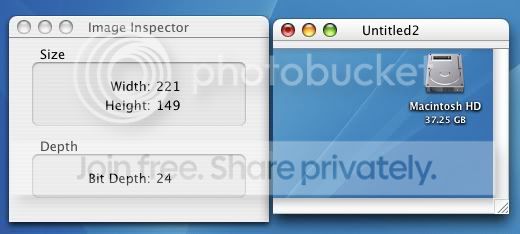
Inpector:
User Image

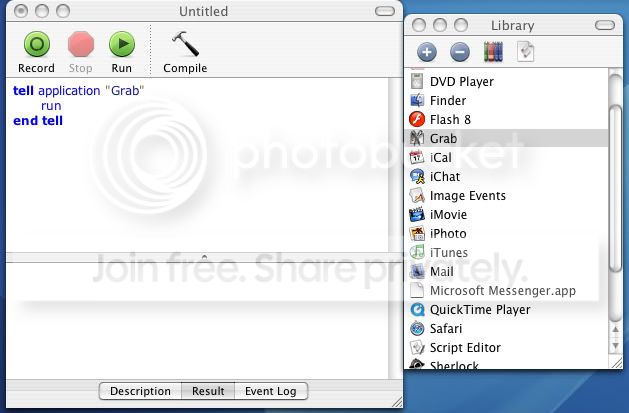
And script acsess:
User Image
Or even Better than that domokun
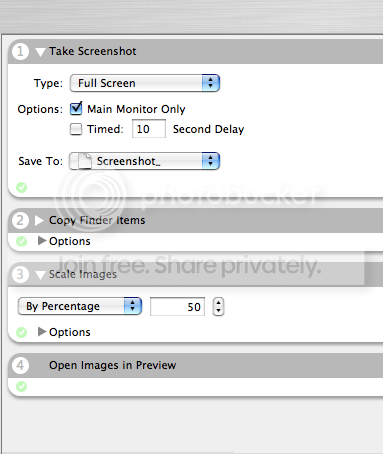
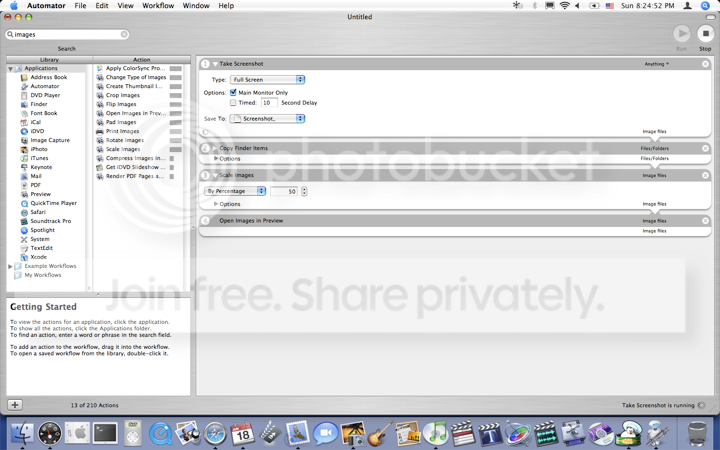
I'm not a big user of automator because you really sorta have to think through a workflow and apply it to these actions (Or make your own).
But it really is an awsome little app and It's Free with OS 10.4
User Image

User Image

Quotable Prophet

14,750 Points
  • Money Never Sleeps 200
  • Entrepreneur 150
  • Wall Street 200
Here are a few more hints I make use of when configuring an OS X desktop.

If you have the new Apple Mighty Mouse or any third party mouse with a right click button, you have access to a few hidden OS X functions that you'd have to use a click/keyboard combo to open.

Open a Finder window with your hard drive content folders in it. Click and hold over your Applications folder and drag it to the right hand side of the Dock. An alias of the original folder will appear and remain in the dock.

Now for some right click fun. Place your cursor over the Applications folder alias in the dock and right click once. Wait a second or so, depending on the speed of your Mac. A column list of every application and folder inside the Application folder alias will appear. You can start any app or open a selected folder inside the alias folder with another single right click.

Another important hint is to create a 'guest' account if you have OS 10.4.x. There are several good reasons to have a generic non-administration user account on your computer, even if you are the only person using it.

Let's say that you do a great deal of work on the internet and you want to set up your web browsers and other software to prevent anything downloaded from the web from opening itself up.

Using the System Preferences panel, select Accounts in the System section of the panel. You will find your primary user account data in the new window that opens. Since you have administration rights, you can create a new account, and set all the restrictions you wish to using the Parental Control button in the upper right hand corner of the panel.

Once you have this new account set up, you can switch between it and your admin account in seconds. OS 10.4 makes this very simple.
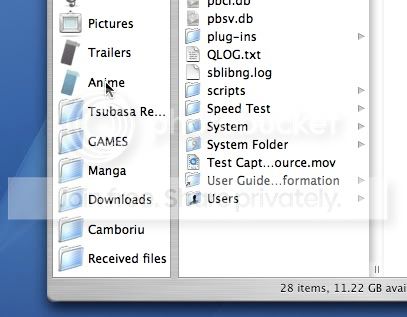
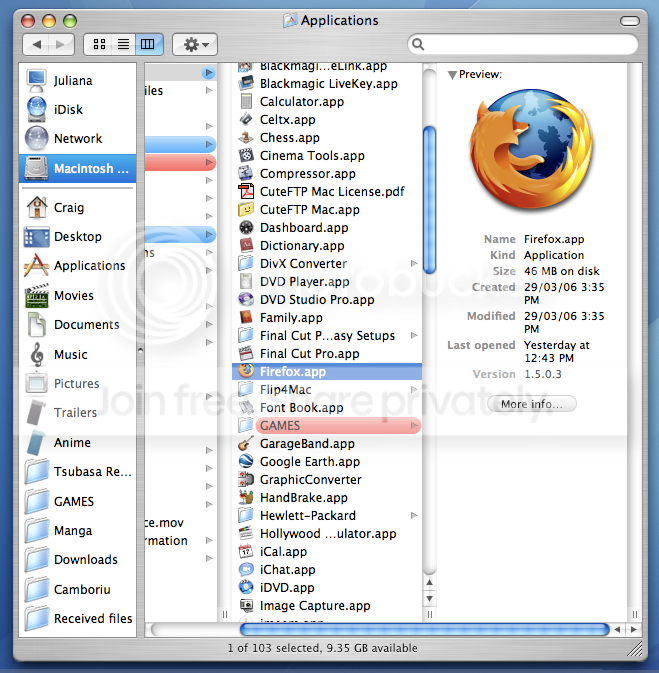
I'm a big fan of the Collum View in the finder I Just think the way it works is very intuative even though I don't use it nearly as much thanks to the sidebar thingy were you can have shortcuts to specific folders and spotlight which makes it easier to launch my apps.

User Image

Quick Reply

Submit
Manage Your Items
Other Stuff
Get GCash
Offers
Get Items
More Items
Where Everyone Hangs Out
Other Community Areas
Virtual Spaces
Fun Stuff
Gaia's Games
Mini-Games
//
//

Join Now

// //

Have an account? Login Now!

//
//