exclaim Coloring in GIMP
arrow Setting up your desktop.
Note: This is just how I prefer to work as it is similar to photoshop.
1. Brushes and Tools. This should open up as soon as you load Gimp.
2. Your file, when you open a file it will create a new window, this is where you draw and such.
3.. Navigation. Go to Dialogs-> Navigation. This is very helpful when you zoom in. You can drag the box inside around and it will change where you are looking in window 2.
4. Layers. You gotta love em. This is what makes everything better. Go to Dialogs-> Layers to open up this window.
:Idea:
Things to Know!
-> Brushes- the Paintbrush can be different shapes. These are known as Brushes. Personally I use Circular brushes though I know some great artists who use caligraphy type brushes, ones that are flatter and at a slant.
-> Opacity- Transparency, how see-through something is. This is mainly going to be used for your Layers and especially for your Brushes.
-> Eye Dropper- If you press CTRL and click on your painting you will take a Sample of the color that you clicked. This is VERY important for blending colors. Use a lower Opacity brush to blend colors by mixing.
Click here for an Example
I Sampled the Blue and using a 50% Opacity brush I painted onto the Red, then I sampled the New color and Painted it onto the Blue. I continued to sample the colors and blend them further. I turned down the Opacity further in the last image and blended more.
-> Zooming - You can Zoom in with SHIFT+ "+" and Zoom out with "-" When zoomed in use the Navigator to move around your canvas.
arrow Preparing your Line Art.
You'll want to start off with clean, inked like art. This is not an inking tutorial. You can scan in your work or, for the sake of practice, you can download the Orc lineart
Here
Step1. You can't use transparency and such on the Background Layer. Duplicate the Lineart layer and delete the old one. Rename the layer "Lineart" or "Lines" Create a new White Layer. Name it Background. Make sure that Background is on the bottom.
Step2. Click on the Lines Layer. Change its Mode to Multiply.
Create a third layer, call it Color. Color should be inbetween Lines and Background.
Step3. Color

On our color layer lets put down a basic skin color. My Orc is green. Use whatever color you like. This will be the basic, unshaded color of the Orc. I used a large circular brush with the Opacity set to 100%. After Coloring everything I made sure to erase everything that was over the lines. I then Locked the Color Layer's
Transparency.
This will make it so that when we draw on Color it won't go outside of our lines.
Step4. Shadow
I tend to start the next step with coloring in the Shadows. This helps me to decide where the light source is coming from. In my Orc's case, its from the top right. Use a darker version of the first color. Sometimes its good to use a darker color with a hint of purple. I used a large circular brush with an Opacity of about 50%. Go over the darker areas, places where shadows will be cast, like the legs, tummy, neck and where two body parts are close.
Step5: Light and Bounce Light
My light source is yellow. For this reason I have painted Yellow highlights where the light would hit more, like the head, arm and leg. I have also added a bounce light, mine is a cool blue and its coming from the bottom left, pointing upwards. Im still using a lowered Opacity brush.
Step6: Details and Blending
This is a bit of a jump from the last step, and a lot has occured. I blended some of the colors. See the Tips at the top of this post for more info on blending. I also lightened the belly and colored the nails, horns and egg. I used a yellowish color for the horns and nails. I then used a dirty red for the top of the base of the horns and nails. I used a very low opacity, smaller brush with the red and streaked the nails.
I also added spots. Why not right? I painted white for the eyes and like our eyes, I added pink to the outside.
For the egg I used a blue and red. Similar to the nails, I used a small brush just to add some texture to the egg.
As you can see, I still have a lot of blending to do and a lot more detail to add.
Finishing Up: Blending and Additional Stuff
Here it is, finalized, or as far as I want to go. I have smoothed out the colors, added some more detail to the spots and given the egg a faint blue glow.
exclaim If you have used this tutorial please post what you've done, I would love to see. ^_^
If you need any further help or tips you can post your progress and Ill get back to you promptly.



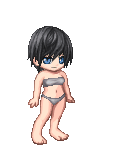

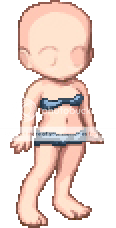 Step 1: Start with a base. This can be a guy or gal avatar, or any other base. (I put undies on mine!)